> ## Documentation Index
> Fetch the complete documentation index at: https://docs.pantio.io/llms.txt
> Use this file to discover all available pages before exploring further.
# Manage Groups
> Create groups and control who sees what
## Groups
Groups let you share your persona with specific people and control which memories they can access.
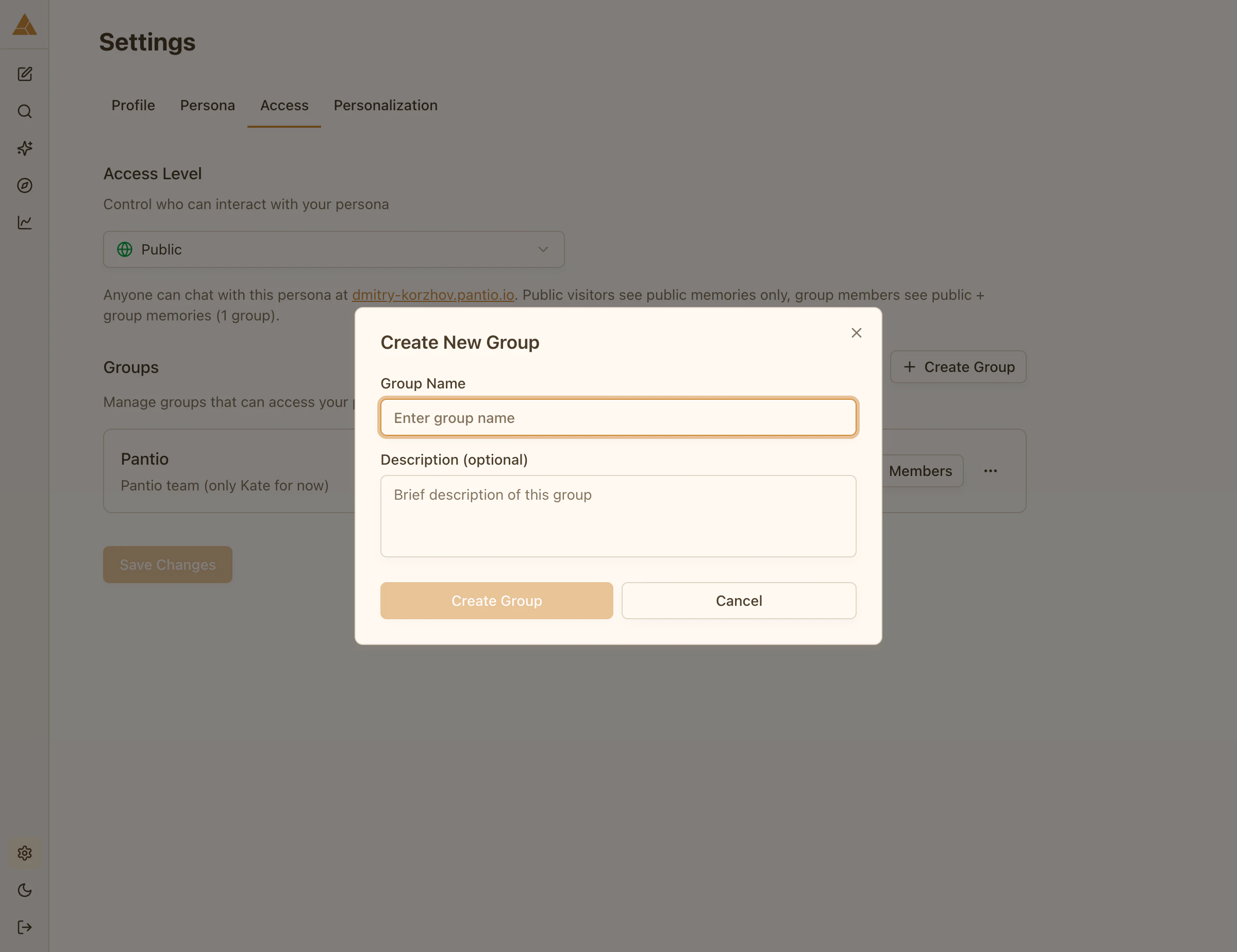 ## Creating a group
Navigate to the Access tab in Settings
Enter a group name (e.g., «Family», «Close Friends», «Work Team»)
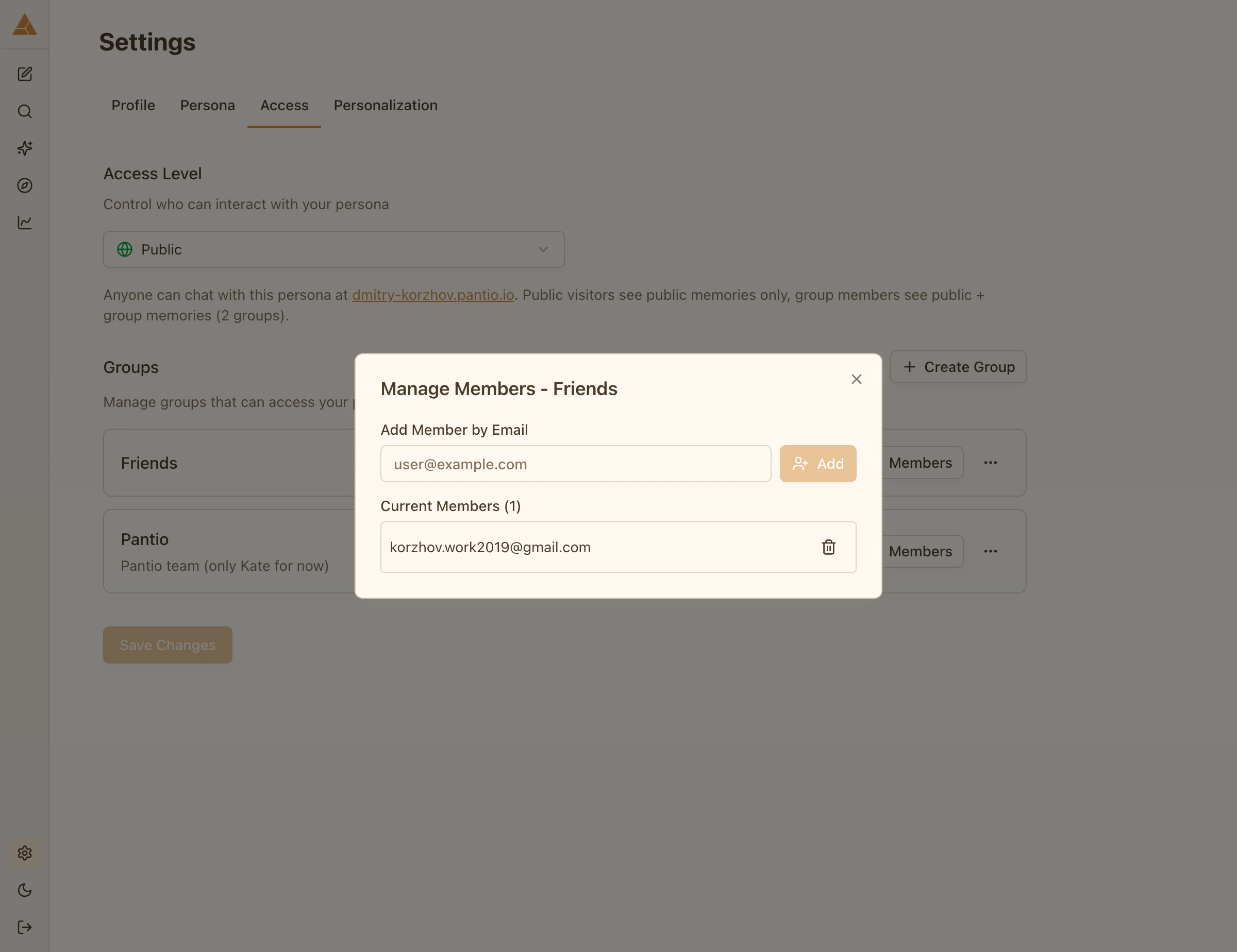
Enter email addresses of people you want to invite
## Group access
When you create a group and add members:
1. Members receive an invitation email
2. They log into Pantio using their email
3. They can access your persona and chat with it
4. They see **public memories + memories assigned to their group**
## Creating a group
Navigate to the Access tab in Settings
Enter a group name (e.g., «Family», «Close Friends», «Work Team»)
Enter email addresses of people you want to invite
## Group access
When you create a group and add members:
1. Members receive an invitation email
2. They log into Pantio using their email
3. They can access your persona and chat with it
4. They see **public memories + memories assigned to their group**
 ## Assigning memories to groups
You control which memories each group can see:
1. Go to **Memories**
2. Select a memory
3. Choose **Group** access level
4. Select which group(s) can see this memory
5. Save
Example: Create a «Family» group and assign personal memories to it, while keeping professional memories in a «Colleagues» group.
## Multiple groups
You can create multiple groups with different access:
* **Family**: personal stories, relationships, family memories
* **Work Team**: professional knowledge, work experiences, skills
* **Close Friends**: mix of personal and casual content
Each group sees public memories + memories specifically assigned to them.
## Editing groups
You can add or remove members at any time:
1. Go to **Settings → Access**
2. Select a group
3. Add or remove email addresses
4. Changes apply immediately
## Assigning memories to groups
You control which memories each group can see:
1. Go to **Memories**
2. Select a memory
3. Choose **Group** access level
4. Select which group(s) can see this memory
5. Save
Example: Create a «Family» group and assign personal memories to it, while keeping professional memories in a «Colleagues» group.
## Multiple groups
You can create multiple groups with different access:
* **Family**: personal stories, relationships, family memories
* **Work Team**: professional knowledge, work experiences, skills
* **Close Friends**: mix of personal and casual content
Each group sees public memories + memories specifically assigned to them.
## Editing groups
You can add or remove members at any time:
1. Go to **Settings → Access**
2. Select a group
3. Add or remove email addresses
4. Changes apply immediately