> ## Documentation Index
> Fetch the complete documentation index at: https://docs.pantio.io/llms.txt
> Use this file to discover all available pages before exploring further.
# Set Visibility
> Choose who can access your persona
## Setting persona visibility
Navigate to **Settings → Access** to configure your persona's visibility level.
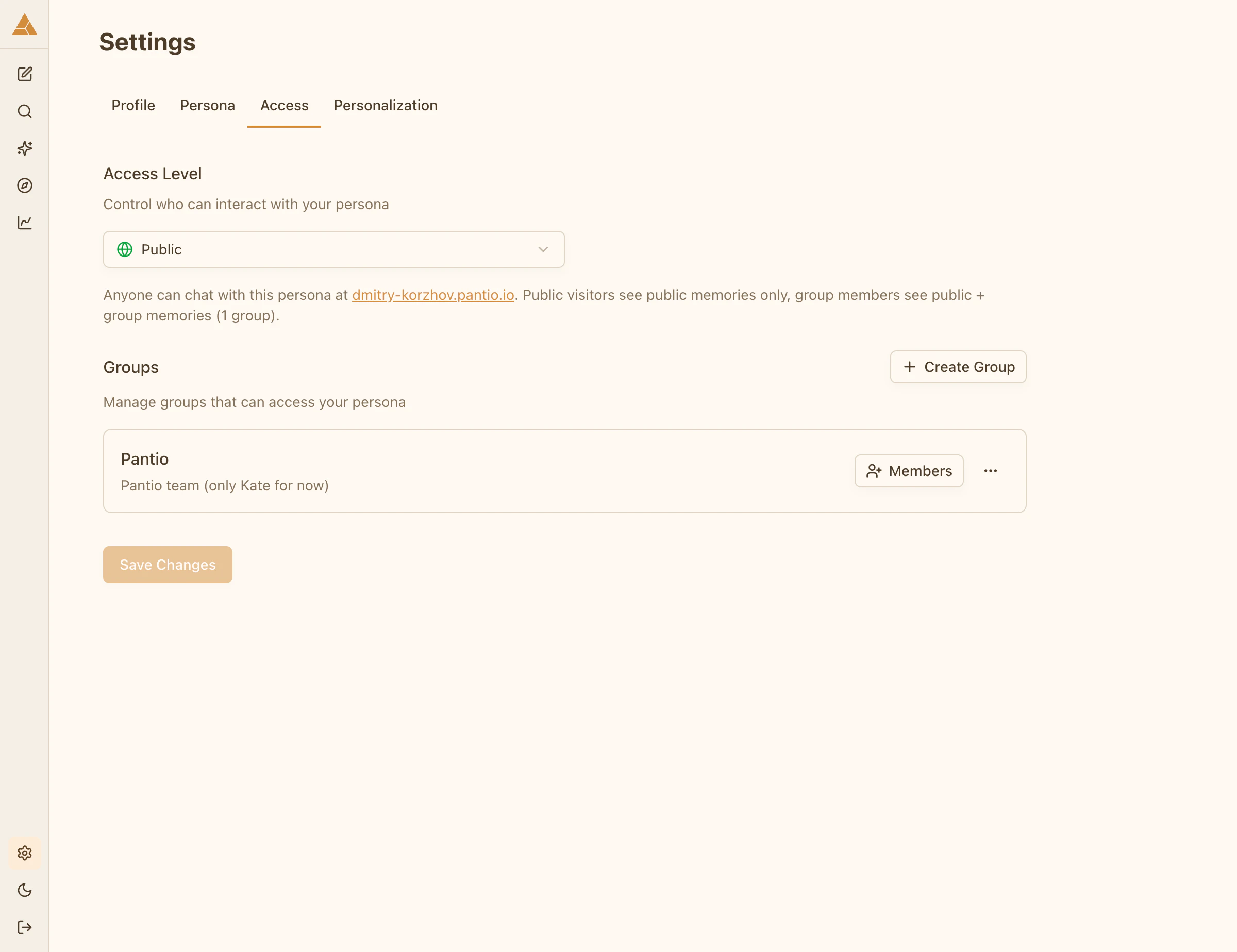 ## Public
Your persona is available at `your-username.pantio.io`.
Anyone can:
* Visit your persona page
* Chat with your persona
* See public memories only
Use case: You want maximum reach and don't mind strangers interacting with your persona.
## Groups only
Your persona page is accessible only to you and group members you invite.
Group members can:
* Log into Pantio
* Access your persona
* See public memories + memories assigned to their group
Use case: You want to share your persona with specific people (family, friends, team) and control what each group sees.
## Private
Your persona is completely private. Only you have access.
Use case: You're testing, building your persona, or simply want to keep everything private.
When set to Private, your public page is not accessible and no one can interact with your persona except you.
## Switching visibility
You can change visibility at any time. Changes apply instantly.
Navigate to the Access tab
Choose Public, Groups only, or Private
Your persona visibility updates immediately
## Public
Your persona is available at `your-username.pantio.io`.
Anyone can:
* Visit your persona page
* Chat with your persona
* See public memories only
Use case: You want maximum reach and don't mind strangers interacting with your persona.
## Groups only
Your persona page is accessible only to you and group members you invite.
Group members can:
* Log into Pantio
* Access your persona
* See public memories + memories assigned to their group
Use case: You want to share your persona with specific people (family, friends, team) and control what each group sees.
## Private
Your persona is completely private. Only you have access.
Use case: You're testing, building your persona, or simply want to keep everything private.
When set to Private, your public page is not accessible and no one can interact with your persona except you.
## Switching visibility
You can change visibility at any time. Changes apply instantly.
Navigate to the Access tab
Choose Public, Groups only, or Private
Your persona visibility updates immediately